LDAP Security
विहंगावलोकन
Managing user credentials across multiple services can be challenging. एलडीएपी (Lightweight Directory Access Protocol) offers a centralized solution, enabling single sign-on (SSO) and streamlining user management.
Ilum integrates smoothly with LDAP servers. Configuration is handled via Helm, allowing you to set connection details, define authentication queries, and map LDAP attributes to Ilum’s internal user model.
Attribute mapping is flexible: you can link LDAP groups and roles—including relationships such as user-to-group and group-to-role—and map user attributes like email, full name, and description directly to Ilum profiles.
Once LDAP integration is set up, users log in to Ilum using their LDAP credentials. Ilum automatically synchronizes user data from the LDAP server according to your Helm configuration, creating and updating profiles and permissions as needed.
जल्दी शुरू
LDAP is available as a module in Ilum, making the setup straightforward.
Set the following values:
इलम कोर:
  प्रतिभूति:
    प्रकार: एलडीएपी

ओपनएलडीएपी:
  सक्षम: सच्चा
This configuration deploys an OpenLDAP server with default settings and connects Ilum Core to it.
The default OpenLDAP server is accessible at ldap://ilum-openldap:389 and includes two sample users:
- ilumadmin (password: शासन)
- ilumuser (password: उपभोक्ता)
For more details on Ilum’s OpenLDAP usage, visit our Artifact Hub page.
Manual OpenLDAP Setup
After testing the default configuration, you may wish to set up your own OpenLDAP instance. Here are some configuration options to consider:
व्यापक:
ldapDomain: ilum.cloud # Your LDAP domain (requirement of the OpenLDAP chart, not Ilum)
इलम कोर:
प्रतिभूति:
प्रकार: एलडीएपी
एलडीएपी:
यूआरएल:
- एलडीएपी://ilum-ओपनएलडीएपी:389 # OpenLDAP URL
ilumToLdapSync: गलत # More on this below
नींव: "dc=ilum,dc=cloud" # Base DN for LDAP
व्यवस्थापकउपयोगकर्ता: # Usernames of users which should be made admins
- ilumadmin
पासवर्डएनकोडर: अनुकूली
उपयोगकर्ता मैपिंग: # Mapping between LDAP and Ilum user attributes
# The enabled and enabledValue attributes are important for user activation
सक्षम: employeeType
सक्षम मूल्य: active
# ...
समूहमानचित्रण: # Mapping between LDAP and Ilum group attributes
# ...
भूमिका मानचित्रण: # Mapping between LDAP and Ilum role attributes
# ...
Default OpenLDAP LDIF files Ilum uses:
00-root.ldif: |- # This file is used to create the root domain - the first step in the LDAP setup
डीएन: dc=ilum,dc=cloud
ऑब्जेक्टक्लास: लट्टू
ऑब्जेक्टक्लास: डोमेन
o: इलम
01-organizational-units.ldif: |- # This file is used to create the organizational units in the LDAP
डीएन: ou=groups,dc=ilum,dc=cloud
ऑब्जेक्टक्लास: लट्टू
ऑब्जेक्टक्लास: संगठनात्मकइकाई
ओयू: समूहों
डीएन: ou = उपसमूह,dc=ilum,dc=cloud
ऑब्जेक्टक्लास: लट्टू
ऑब्जेक्टक्लास: संगठनात्मकइकाई
ओयू: उपसमूहों
डीएन: ou=लोग,dc=ilum,dc=cloud
ऑब्जेक्टक्लास: लट्टू
ऑब्जेक्टक्लास: संगठनात्मकइकाई
ओयू: लोग
02-admin-user.ldif: |- # This file is used to create the admin user in the LDAP
डीएन: uid=ilumadmin,ou=लोग,dc=ilum,dc=cloud
ऑब्जेक्टक्लास: लट्टू
ऑब्जेक्टक्लास: व्यक्ति
ऑब्जेक्टक्लास: संगठनात्मकव्यक्ति
ऑब्जेक्टक्लास: inetOrgव्यक्ति
सीएन: Ilum Admin
एसएन: Admin
यूआईडी: ilumadmin
डाक: [ईमेल संरक्षित]
या क़िस्म: Ilum Admin
उपयोगकर्ता पासवर्ड: शासन
employeeType: active
03-user.ldif: |- # This file is used to create the user in the LDAP
डीएन: uid=ilumuser,ou=लोग,dc=ilum,dc=cloud
ऑब्जेक्टक्लास: लट्टू
ऑब्जेक्टक्लास: व्यक्ति
ऑब्जेक्टक्लास: संगठनात्मकव्यक्ति
ऑब्जेक्टक्लास: inetOrgव्यक्ति
सीएन: Ilum User
एसएन: उपभोक्ता
यूआईडी: ilumuser
डाक: [ईमेल संरक्षित]
या क़िस्म: Ilum User
उपयोगकर्ता पासवर्ड: उपभोक्ता
employeeType: active
For more information about the OpenLDAP chart used by Ilum, see its GitHub भंडार नहीं तो Artifact Hub page.
LDAP with SSL
For secure connections, Ilum fully supports LDAPS (LDAP over SSL).
To enable LDAPS:
- Provide a truststore containing your LDAP server’s CA certificate. See the Truststore documentation for details.
- (Optional) Provide a keystore if your LDAP server requires mutual TLS (mTLS) with a client certificate.
जल्दी शुरू
This section uses a convenience tool called mkcert to generate a self-signed certificate. You can learn more about it यहाँ.
Let’s begin by generating a TLS certificate for our LDAP server with mkcert:
mkcert ilum-openldap ldap localhost 127.0.0.1
The arguments passed to mkcert are the domains we want our certificate to cover.
This command will output two files:
ilum-openldap+3-key.pem: Private key for the certificateilum-openldap+3.pem: Certificate itself
Now, we need to load-in the certificate into our kubernetes cluster:
kubectl create secret tls openldap-tls --cert=./ilum-openldap+3.pem --key=./ilum-openldap+3-key.pem
This will create a TLS secret named openldap-tls containing the certificate and private key.
Lastly, we need to load the mkcert certificate authority into our cluster as well. You can see where the CA is stored by running mkcert -CAROOT.
It should give you a path, where a file named rootCA.pem is located. Point to this file when executing the following command:
kubectl create secret generic mkcert-ca --from-file=सीए.सीआरटी=/path/to/rootCA.pem
This will create a Kubernetes secret named mkcert-ca containing the CA certificate.
Now, it is enough to adjust your Helm configuration to use the TLS secret and CA secret:
इलम कोर:
  प्रतिभूति:
    प्रकार: एलडीएपी
    एलडीएपी:
      यूआरएल:
        - एलडीएपीएस://ilum-ओपनएलडीएपी:636 # Use ldaps:// and the correct port

    # Basic configuration for importing the CA certificate to Ilum's trust store
    ट्रस्टस्टोर:
      सक्षम: सच्चा
      मोड समूह: single
      गुप्त नाम: mkcert-ca

ओपनएलडीएपी:
  सक्षम: सच्चा
  initTLSSecret:
    tls_enabled: सच्चा
    रहस्य: "openldap-tls" # Point to the TLS secret created earlier
With this configuration Ilum will use the TLS certificate to connect to LDAPS.
Keystore Configuration
However, we can go a step further and use a keystore to authenticate our client.
Prepare a PKCS#12 file containing your client certificate and private key:
openssl pkcs12 -export -in ilum-openldap+3.pem -inkey ilum-openldap+3-key.pem -certfile <your-CA-cert> -name "client-cert" -out client.p12 -password pass:yourpassword
Create a Kubernetes secret with the keystore:
kubectl create secret generic ilum-keystore --from-file=कीस्टोर.p12=client.p12
Now, add to the values:
इलम कोर:
  प्रतिभूति:
    # ...
    कीस्टोर:
      सक्षम: सच्चा
      गुप्त नाम: "ilum-keystore" # Name of the Kubernetes secret
      गुप्त फ़ाइल नाम: "कीस्टोर.p12" # File name within the secret
      पासवर्ड: "चेंजमीप्लीज" # Keystore password
ILUM ↔ LDAP Synchronization
Ilum supports bidirectional synchronization with LDAP. When enabled, changes to users, groups, or roles in Ilum are automatically reflected in LDAP.
To enable synchronization, set ilum-core.security.ldap.ilumToLdapSync तक सच्चा in your Helm configuration.
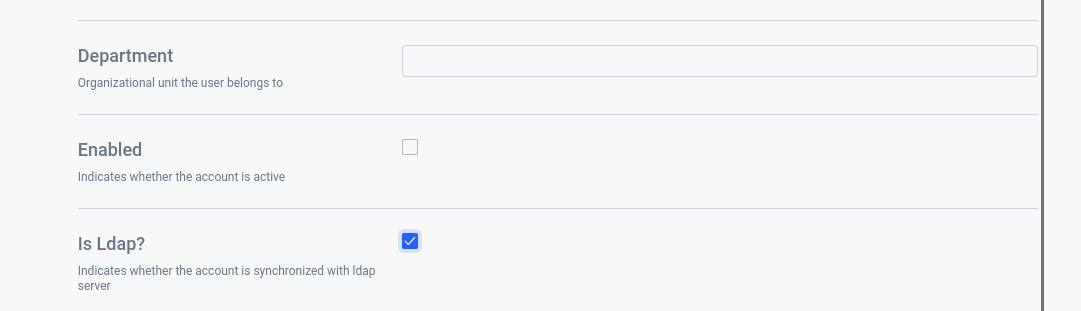 Selecting this checkbox in the UI enables user synchronization with LDAP
Synchronization covers users, groups, and roles, provided attribute mappings are correctly defined in your Helm मान.yaml.
पूर्ण विन्यास
A complete configuration example:
इलम कोर:
प्रतिभूति:
प्रकार: एलडीएपी
एलडीएपी:
नींव: "<your_base_dn>"
यूआरएल:
- एलडीएपी://<domain>:<बंदरगाह>
उपयोगकर्ता नाम: "<your_admin_username>"
पासवर्ड: "<your_admin_password>"
पासवर्डएनकोडर: <chosen_password_encoder>
व्यवस्थापकउपयोगकर्ता:
- <व्यवस्थापक-उपभोक्ता>
उपयोगकर्ता मैपिंग:
नींव: "<your_user_base>"
छानना: "<your_filter>"
पासवर्ड: "<your_password>"
उपयोगकर्ता नाम: "<your_username>"
पूरा नाम: "<your_fullname>"
या क़िस्म: "<your_description>"
मंत्रालय: "<your_department>"
ईमेल: "<your_email>"
सक्षम: "<your_enabled>"
सक्षम मूल्य: "<your_enabled_value>"
समूहमानचित्रण:
नींव: "<your_group_base>"
छानना: "<your_filter>"
memberविशेषता: "<your_member_attribute>"
roleFilterविशेषता: "<your_role_filter_attribute>"
नाम: "<your_name>"
या क़िस्म: "<your_description>"
भूमिकाओं: "<your_roles>"
सक्षम: "<your_enabled>"
सक्षमसत्य: "<your_enabled_true>"
भूमिका मानचित्रण:
नींव: "<your_role_base>"
छानना: "<your_filter>"
memberविशेषता: "<your_member_attribute>"
नाम: "<your_name>"
या क़िस्म: "<your_description>"
सक्षम: "<your_enabled>"
सक्षमसत्य: "<your_enabled_true>"
सक्षम, सक्षमसत्य
These options map the ENABLED/DISABLED state from LDAP to Ilum.
सक्षम: Name of the LDAP attribute containing the state.सक्षमसत्य(यासक्षम मूल्यfor users): Value representing ENABLED.
Example mapping:
डीएन: यूआईडी जॉर्ज, ओयू = लोग, डीसी = स्प्रिंगफ्रेमवर्क, डीसी = ऑर्ग
ऑब्जेक्टक्लास: शीर्ष
ऑब्जेक्टक्लास: व्यक्ति
ऑब्जेक्टक्लास: संगठनात्मक व्यक्ति
ऑब्जेक्टक्लास: inetOrgPerson
सीएन: जॉर्ज अर्देंसन
डाक: [ईमेल संरक्षित]
विवरण: धोखाधड़ी का पता लगाने में डेटासाइंटिस्ट
यूआईडी: जॉर्ज
उपयोगकर्ता पासवर्ड: पास
स्थिति: चालू
Configuration:
उपयोगकर्ता मैपिंग:
    सक्षम: "स्थिति"
    सक्षम मूल्य: "चालू"
You can similarly map states for roles and groups.
By default, सच्चा और सक्षम are interpreted as ENABLED.
Ensure a valid value is set for the सक्षम attribute. Otherwise, Ilum will treat users as DISABLED by default.
भूमिकाओं और roleFilterविशेषता
These options map group-to-role relationships from LDAP to Ilum.
भूमिकाओं: Group attribute containing role names.roleFilterविशेषता: Optionally binds values fromभूमिकाओंto an attribute in the LDAP role.
Example mapping:
डीएन: सीएन = डेटासाइंटिस्ट, ओयू = उपसमूह, डीसी = स्प्रिंगफ्रेमवर्क, डीसी = ओआरजी
ऑब्जेक्टक्लास: शीर्ष
ऑब्जेक्टक्लास: groupOfNames
सीएन: डेटासाइंटिस्ट
सदस्य: यूआईडी = जॉर्ज
businessCategory: "समग्र डेटा विश्लेषण"
पहचान: "KQ320"

डीएन: सीएन = उपयोगकर्ता, ओयू = उपसमूह, डीसी = स्प्रिंगफ्रेमवर्क, डीसी = ऑर्ग
ऑब्जेक्टक्लास: शीर्ष
ऑब्जेक्टक्लास: groupOfNames
सीएन: डेटासाइंटिस्ट
सदस्य: यूआईडी = ऐलिस
सदस्य: यूआईडी = बॉब
सदस्य: यूआईडी = जॉर्ज
businessCategory: "समग्र डेटा विश्लेषण"
भूमिकाएँ: KQ320
भूमिकाएँ: BR200
भूमिकाएँ: LL100
Configuration:
समूहमानचित्रण:
    भूमिकाओं: उपसमूहों
    roleFilterविशेषता: अध्यक्ष
If roleFilterविशेषता is not set, Ilum will match LDAP roles by name or create new ones as needed
पासवर्डएनकोडर
Supported values:
- अनुकूली
- बीक्रिप्ट
- एमडी5
- एसएचए256
These specify the password encoder used by your LDAP server.
By default, Ilum uses the adaptive encoder,
which detects the prefix (e.g., {bcrypt} नहीं तो {noop}) and selects the appropriate encoder for credential verification.
If no prefix is present, no encoder is applied.